
Introduction
Local History is one of those IDE features you don’t think about until you desperately need it. This post covers what it is, how it works, and the scenarios where it saves you: accidental rollbacks, lost uncommitted changes and rebase mistakes.
It was a Friday afternoon. I had been working on a feature for days, made solid progress, and was about to commit. I messed up with which branch I was working on and instead I clicked “Discard Changes” in VSCode… poof. All changes reverted. The project looked like I hadn’t touched it in a week.
I hadn’t committed yet. git status showed nothing. The changes were never staged. Days of work, vanished.
After some Googling, I stumbled on something I had never used in JetBrains IDEs: Local History. And there it was: every save I made, every change listed. I picked the version from right before my disastrous rollback, clicked “Revert”, and my code was back.
That day, Local History went from “some menu item I always ignored” to “the most important feature I never knew I had.”
What is Local History?
Local History is a feature built into all JetBrains IDEs (Rider, IntelliJ IDEA, WebStorm, etc.) that automatically tracks changes to your files. Every time you save, the IDE stores a snapshot of the file. It keeps a timeline of all these snapshots, allowing you to:
- View the diff between any two versions
- Revert a file to any previous state
- Compare current code with a specific point in time
- Label important snapshots for future reference
The key difference from version control (git): Local History is automatic and local. It doesn’t depend on you remembering to commit, stage, or even save intentionally (though it triggers on save events). It’s always running in the background, keeping a safety net of your last several days of work (configurable).
Does Local History Track External Changes?
Yes. If a file is modified outside the IDE (git commands via terminal or another editor), the IDE detects the change and creates a Local History entry labeled “External change” showing the full diff.
By default, detection happens when:
- The IDE window gains focus: switching back to Rider/IntelliJ triggers a file sync (controlled by the “Synchronize files on frame activation” setting, enabled by default)
- You interact with the file: clicking its tab or trying to edit triggers a check
If the IDE is running but minimized or in the background, external changes may not be detected immediately — they sync when you alt-tab back to the window. If the IDE was completely closed, the last snapshot is from before shutdown; the next one is taken when it reopens and detects the modified file. That intermediate state is lost.
Recommended: Enable Periodic Sync for Background Changes
You can override the focus requirement. Go to File → Settings → Appearance & Behavior → System Settings → Sync external changes and switch to “Periodically when the IDE is inactive (experimental)”. This reloads externally changed files every 15 seconds when the IDE is idle; no window switch needed.
When Git Can’t Help
Git is amazing, but it has blind spots. Here are the scenarios where Local History shines:
1. The Accidental Rollback (My Story)
You select a file and discard changes, expecting to undo one specific change. But it reverts the entire file to the last committed state. If you had uncommitted changes across multiple methods, you just lost all of them.
git reflog won’t help because nothing was ever staged or committed. git restore can’t restore what was never saved to the object database. Local History is the only escape hatch.
2. Lost During Rebase
Rebasing is powerful but dangerous, because you can resolve a conflict wrong and not notice until later.
During a rebase, git pauses on a conflict. You open the file and resolve the conflicts. But in a complex merge, it’s easy to accidentally pick the wrong side, delete something that should stay, or miss a hunk entirely. Git accepts your resolution and moves on. No warning. The wrong code is now part of the rebased history.
After losing changes to a rebase once, I now always create a backup branch or a tag before starting a rebase. Or even do this approach which avoids multiple conflict resolutions in the first place.
3. Untracked New Files Lost on Branch Switch
You create a brand new file on branch A; never staged, never committed. Git treats it as untracked, so when you switch to branch B, the file tags along silently (git doesn’t clean up untracked files).
On branch B, you forget the file was from the other branch. You edit it, delete it, or overwrite it thinking it’s part of B’s work. When you switch back to A, the file is gone.
Local History tracks new files from the moment you create and save them. Open Local History on the directory , find the snapshot with your file, and recover its contents.
How to Access Local History
Accessing Local History in Rider is straightforward:
Show History for a File
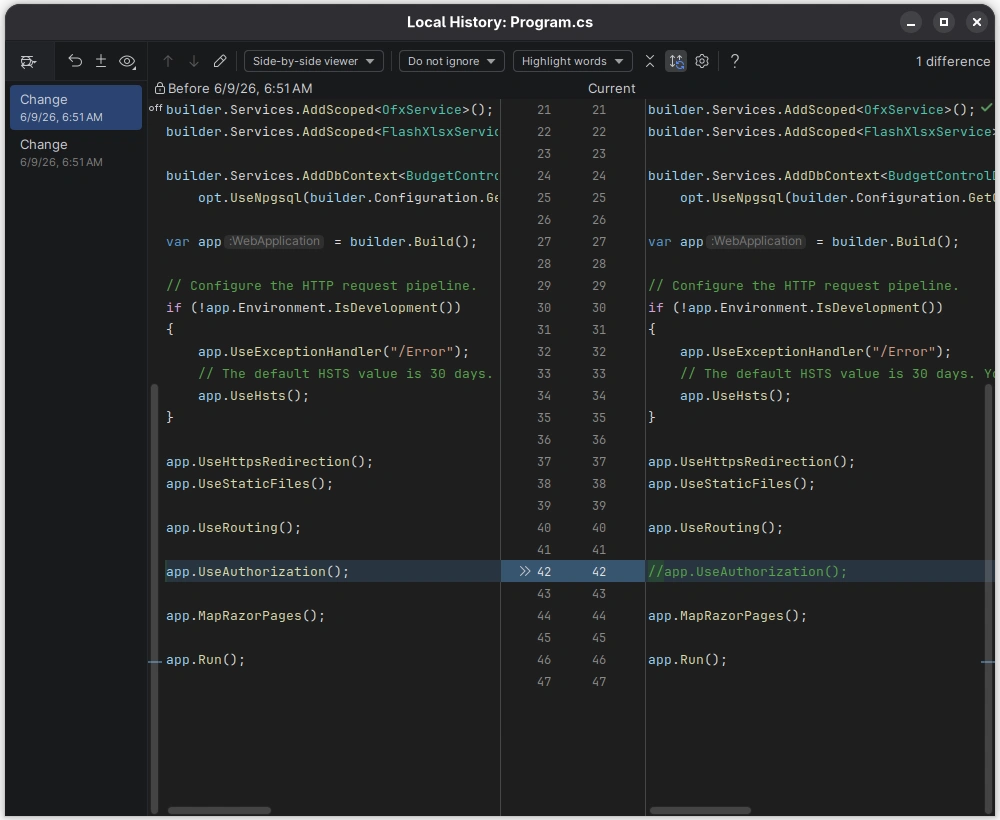
Right-click on a file in the editor or Solution Explorer → Local History → Show History.
This opens a dialog with:
- Left panel: A timeline of saved versions (with timestamps)
- Right panel: A diff view comparing the selected version with the current file
- Actions: Revert, Create Patch, Compare with… (and a restore button in the toolbar)
Show History for a Directory
You can also right-click a directory → Local History → Show History. This shows changes across all files in that directory; useful when you’re trying to understand what changed across multiple files in one session.
Key Actions in the History Dialog
| Action | Description |
|---|---|
| Revert | Restore the file to the selected historical version |
| Create Patch | Generate a .patch file from the differences between two versions |
| Compare | View a side-by-side diff of two historical versions |
| Label | Add a meaningful name to a snapshot (e.g., “Before AI refactor”) |
Configuration
You can configure Local History retention in File → Settings → Advanced Settings → IDE section → Duration of storing changes in Local History. The default is 5 working days (days when the file was modified), but you can increase it.
Local History also has a maximum storage size, so old revisions are not guaranteed to persist indefinitely.
Conclusion
Local History is one of those IDE features that seems unremarkable until it saves your day. It fills the gap between your your git commits, capturing saves along the way.